GaitPilot Guardian Guide: Live Tracking & Safety Dashboard
Welcome to the GaitPilot Guardian Guide. This guide is written specifically for family members, coaches, caregivers, and friends who have been designated as a Guardian by an athlete or walker using the GaitPilot mobile app.
🧭 What Is Your Role as a Guardian?
As a Guardian, you provide a caring, supportive safety network while the walker is out on the road, trail, track, or neighborhood.
You do not need to download or install any app. You can follow their progress directly from any web browser on your smartphone, tablet, or computer. The dashboard operates as an ultra-fast Progressive Web App (PWA) with instant sub-second loading, automated error recovery, and optional Home Screen installation.
Through the secure, private GaitPilot Guardian Dashboard, you can: * See Live GPS Location: Follow the walker's real-time position and breadcrumb trail on an interactive, mobile-optimized dark map. * Monitor Safety & Vitals: View live updates of whatever metrics the walker chose to share (speed, walking cadence, heart rate, battery percentage, and form symmetry). * Two-Way Hands-Free Communication: Send text messages or quick action chips from your browser that are spoken aloud into the walker's earbuds. You will receive their hands-free voice replies transcribed back to your chat in real time. * One-Tap Emergency Navigation: Tap a prominent button to immediately launch turn-by-turn driving or walking directions to the walker's exact coordinates in Google Maps. * Audible Watchdog Alerts: If the walker suffers a fall, stops unexpectedly, or experiences cardiac distress, your dashboard sounds an attention-grabbing siren and displays a high-priority emergency banner.
🔒 Athlete-Controlled Safety Access
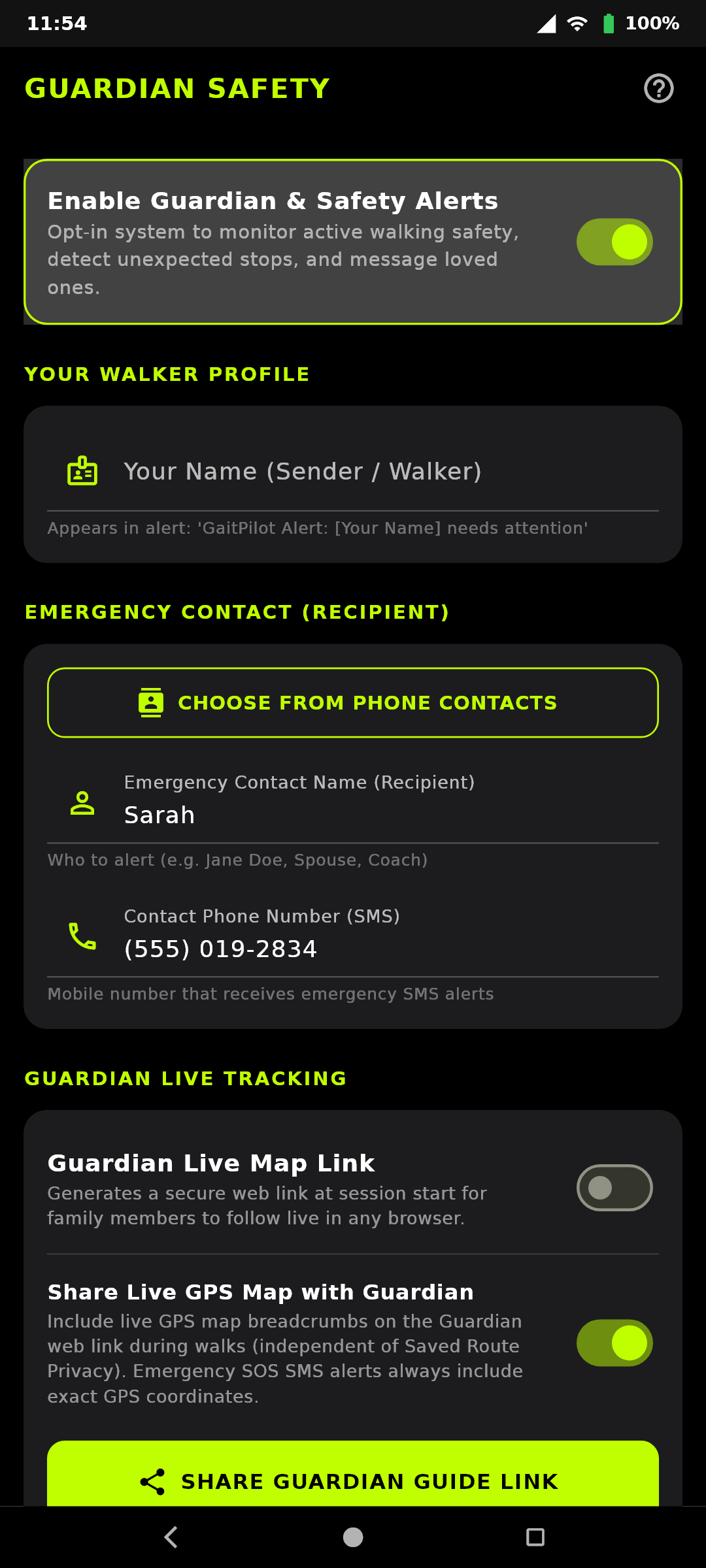
Guardian monitoring is strictly controlled by the walker: * No Unsolicited Tracking: A guardian cannot remotely turn on GPS, wake up sensors, or begin tracking. A live feed only exists when the walker actively presses START on their mobile app. * Automated or Manual Dispatch: The walker selects which designated guardian contacts receive the encrypted live tracking link via SMS. * Instant Session Teardown: As soon as the walker presses STOP in the mobile app, live GPS relay stops immediately and the room closes.
📱 Mobile-First Layout: Zero-Scroll Overview
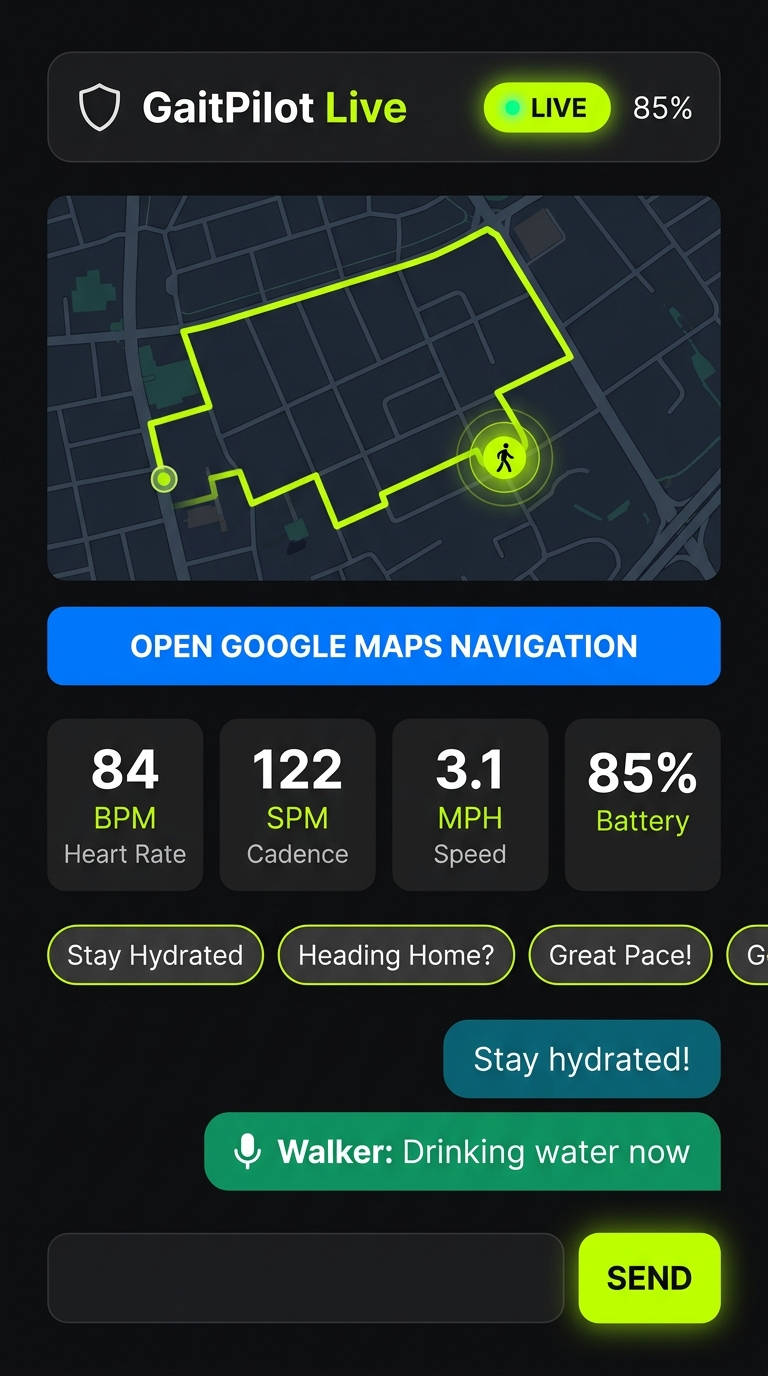
The Guardian Dashboard is designed with a mobile-first, zero-scroll layout. On standard smartphone screens (such as iPhone, Pixel, or Samsung Galaxy), all critical controls fit on a single screen without needing to scroll down:
- Header & Status Bar: Shows the walker's name, their phone battery percentage with color-coded battery indicators, and a real-time Freshness Badge:
LIVE(Green): Telemetry packets are streaming normally.WALK PAUSED(Cyan): The walker intentionally paused their walk (e.g., resting on a bench, chatting with a neighbor, or stopping for water). The live map, battery level, and two-way chat remain fully functional. Activity/inactivity alarms are suspended to avoid false alerts, while high-G fall detection remains vigilant. Screen readers (TalkBack/NVDA) automatically announce "Walker paused the walk".SIGNAL PAUSED (X ago)(Amber): If the walker enters a cellular dead zone, the dot turns amber and shows elapsed time (e.g.SIGNAL PAUSED - 35s ago). The last-known GPS location remains visible and messages are queued for delivery once service returns.SESSION COMPLETED(Blue): The walk was intentionally finished. Displays a summary card with total mileage, duration, cadence, steps, and exact finish timestamp.SESSION EXPIRED(Gray): The session link is older than 20 minutes and has concluded.- Guaranteed Core Trip Badge (Always Visible):
- Located prominently in the header immediately beside the status indicator, the Trip Badge guarantees real-time visibility of Total Miles and Elapsed Duration (e.g.
1.84 mi • 32:15). - Unlike optional telemetry dials, Trip Distance and Trip Duration are hardcoded into every live broadcast packet, guaranteeing that guardians always know how far and how long the athlete has traveled even if the athlete turned off other biomechanical gauges.
- Interactive Map (Top Section):
- Pre-Lock Friendly Overlay: Before the walker steps outside and acquires their first satellite lock, the dashboard displays a clear status card: "Connecting to Walker... Waiting for first GPS lock". This prevents confusing default maps (such as Null Island off the coast of Africa).
- Live Beacon & Trail: Once GPS is locked, the map instantly glides to street level (zoom 16) with a pulsing green location beacon and an electric lime (
#C0FF00) breadcrumb trail showing their exact path. - Turn-by-Turn Navigation Button:
- A full-width blue button:
🗺️ OPEN GOOGLE MAPS NAVIGATION. - Tapping this button instantly opens the Google Maps app on your phone with directions straight to the walker's current coordinates.
- Dynamic Telemetry Metric Cards & Responsive 3-Column Grid:
- The metric grid automatically adapts to the metrics the athlete has configured to share in their app (e.g., Speed in MPH, Cadence in SPM, Heart Rate in BPM, Battery %, and Form Score).
- On mobile phones, cards stack in an easily glanceable column; on desktop browsers, laptops, or tablets, cards dynamically wrap into a clean 3-column responsive grid.
- Live values update smoothly over a secure WebSocket connection. Internal system flags (such as calibration variables) are cleanly filtered out so family members only see intuitive health vitals.
- Two-Way Live Chat & Quick Action Chips (Bottom Section):
- Pre-configured Quick Action chips:
[Stay Hydrated 💧],[Heading Home? 🏠],[Great Pace! 👏], and[Are You Okay? 🚨]. - A text entry bar and Send button for custom messages.
- A chronological chat transcript showing your sent messages and the walker's voice replies.
🚀 How It Works Step-by-Step
Step 1: Receive the Live Link via Text Message (SMS)
When the walker starts a workout with Live Share enabled, you will receive an SMS text message on your phone:
"GaitPilot: Alex has started a walk.
Phone Battery: 89%
Track live on Guardian Dashboard:
https://gaitpilot.com/live/?session=..."
This message contains exactly one link to prevent confusion during urgent moments.
Step 2: Open the Dashboard in Any Browser
Tap the link in the text message. It opens immediately in Chrome, Safari, Samsung Internet, Firefox, or Edge. * The dashboard connects securely to the live session room using encrypted WebSockets (WSS / TLS 1.3). * There are no passwords to remember; the link uses a cryptographically secure, private session token. * Role-Locked Experience: Your link automatically locks the dashboard to the Guardian view with emergency alerts, Google Maps navigation, and the dedicated Guardian chat channel. There are no mode switches to worry about, keeping your safety monitoring straightforward and isolated from athletic coaching.
Step 3: Send Messages & Receive Voice Replies (Dedicated Guardian Channel)
- Tap any of the Quick Action chips or type a message into the chat field and tap Send.
- Strict Channel Isolation: Your communications route exclusively through the private Guardian Channel. The walker's athletic coach (if active) has a separate Coach Channel; coaching feedback and technical drills never appear on your Guardian Dashboard.
- GaitPilot delivers your message to the walker's phone within milliseconds.
- The phone halts any active metric readout, ducks background audio sonification, speaks your message completely into the walker's earbuds ("Guardian says: [Your Message]. Say your reply now." or "Guardian [Name] says: [Your Message]..."), pauses briefly, and sounds a voice input chime.
- The walker speaks their reply hands-free during an isolated 4-second listening window.
- Their spoken response routes directly back to the Guardian Channel and appears in your dashboard chat transcript: "Walker: I'm feeling great, turning back now!".
🚨 Watchdog Emergency Alerts: Falls, Inactivity, & Wear OS SOS
GaitPilot actively monitors the walker's biomechanics and safety using multi-sensor fusion across their phone and optional wearable devices (such as a Wear OS smartwatch).
1. 30-Second Pre-Alert Grace Window (False Alarm Shield)
If the walker experiences an impact fall, prolonged unexpected inactivity, or triggers a manual SOS from their Wear OS watch: * Distress Triggers: * Impact Fall: High-G drop with subsequent immobility. * Idle Watchdog: Prolonged cessation of movement without pausing the walk. * Wear OS Watch SOS: Walker presses the dedicated red SOS button on their companion smartwatch. * Pre-Alert Countdown: The walker's phone and watch sound an immediate 30-second countdown in their earbuds and device speakers. * Privacy Protected: During this 30-second window, no alert is sent to your dashboard and no SMS is dispatched. The dashboard continues showing normal live tracking. * Easy Dismissal: If the walker is fine (e.g. stopped to talk with a neighbor or accidentally tapped SOS), they can cancel the alert hands-free (saying "I'm okay", tapping their watch, or pressing an earbud button). Dismissing instantly returns tracking to normal without alarming you.
2. Live Guardian Emergency Broadcast (Simultaneous SMS + Dashboard)
If the 30-second countdown expires without being dismissed:
* Instant Out-of-Band Telemetry Push: The phone immediately pushes an emergency state update to your live dashboard without waiting for the next scheduled GPS cycle.
* Dashboard Emergency Banner: A pulsating crimson banner flashes across the top of your Guardian Dashboard detailing the exact distress type (e.g. 🚨 EMERGENCY WATCHDOG ALERT: Manual SOS Beacon Activated or Prolonged Inactivity / Potential Fall Detected).
* Audible Browser Siren: The dashboard synthesizes a piercing two-tone audio alert siren through your device speakers using the Web Audio API, waking or alerting you even in noisy environments.
* Emergency SMS Dispatched: You simultaneously receive an urgent text message on your phone with the distress reason, battery percentage, heart rate, and exact GPS coordinates with a direct navigation link.
* Map Auto-Focus & Navigation: The live map instantly centers on the walker's coordinates, and the prominent "OPEN GOOGLE MAPS NAVIGATION" button lets you start driving or walking directions in one tap.
📺 Living Room TV & Smart Display Companion (gaitpilot.com/tv)
For family members who want to monitor the walker from the comfort of their living room couch, kitchen smart display, or office without checking a smartphone:
1. Zero-Install TV Viewing
- Open the built-in web browser on your Google TV, Samsung Smart TV, LG TV, Amazon Fire TV, or tablet.
- Go to:
https://gaitpilot.com/tv(Tip: Add it to your TV favorites or home screen bar). - The TV displays a large, high-contrast 4-digit code (such as
5824).
2. One-Time 4-Digit Pairing & Multi-Screen Management
- On the walker's phone, open Settings → Link TV / Smart Display and enter the 4-digit code.
- Walkers can give the display an optional nickname, such as "Living Room TV", "Kitchen Nest Hub", or "Grandma's Display".
- The TV immediately pairs with the walker's profile. Walkers can link multiple screens simultaneously across different rooms or family households worldwide.
- In the app's Linked Screens deck, the walker can see all active paired screens, verify their online connection, and remove any individual screen with a single tap or unlink all at once.
3. Automatic Hands-Free Wake & Standby
- Automatic Wake-up: The moment the walker taps "Start Walk" on their phone, the TV screen automatically wakes up and displays the full-screen 16:9 Live Guardian Dashboard or Coach Command Center with live map breadcrumbs and vitals.
- True Cloud Independence: The TV streams directly over home Wi-Fi from the cloud relay. The walker can lock their phone and walk miles away—the TV updates smoothly in real time.
- Auto-Standby on Session Finish: When the walker finishes or discards their workout (from active tracking or while paused), the live stream terminates immediately. Connected TVs display a clean 3-minute summary before returning to ambient standby, while web guardian dashboards mark the session as
SESSION COMPLETED.
4. Google Nest Hub Max & Kitchen Smart Displays (Voice Setup)
If your family uses a Google Nest Hub Max or smart display on the kitchen counter: * Voice Command: Say: "Hey Google, open gaitpilot.com/tv". * Pairing: The Nest Hub Max displays the 4-digit code. Sighted family members can read the 4 digits to the walker, or enter it in the walker's GaitPilot app under Settings → Link TV / Smart Display. * Zero-Touch Live Wake: Once paired, you never need the code again. Keep the Nest Hub Max on your counter; whenever the walker starts their workout, the smart display automatically illuminates with live map breadcrumbs, battery level, and vital signs.
📶 Connection Resilience, Signal Drops & What to Expect
GaitPilot is engineered to gracefully handle cell dead zones, network drops, and device interruptions so guardians always have an accurate, truthful picture of the walker's situation:
1. Walker Enters a Cellular Dead Zone or Tunnel
- What you see on the dashboard: If the walker enters a subway, parking garage, or rural valley where cellular reception drops for more than 15 seconds, the status badge turns amber and displays
SIGNAL PAUSED (X ago)(e.g.,SIGNAL PAUSED - 24s ago). Screen readers announce "Walker signal paused". - Map and History: The map freezes on the walker's last-known GPS location and preserves their entire route path. It never blanks out or reverts to default coordinates.
- Sending Messages: Any chat messages you send while signal is paused are held securely in server memory.
- Automatic Reconnection: The moment the walker emerges from the dead zone and reconnects to mobile data, the dashboard turns green
LIVEwithin 2 seconds, announces "Walker signal restored. Live stream active", draws all intervening path breadcrumbs, and delivers your queued messages straight into the walker's earbuds.
2. Guardian Mobile Phone or Computer Loses Internet
- What you see: If your home Wi-Fi blips or your mobile device enters an elevator while viewing the dashboard, the page freezes on its current state.
- Automatic Sync: You do not need to refresh the page. The dashboard continuously checks for connection in the background; the instant your internet returns, it immediately catches up on recent chat messages and resumes live tracking.
3. Walker Phone Battery Dies or App Unexpectedly Closes
- Initial 15 Seconds: Dashboard flags
SIGNAL PAUSEDwith the elapsed timer. - 20-Minute Hard Expiry: If the walker's phone is unable to reconnect after 20 minutes (e.g., dead battery), the cloud server automatically marks the session closed. The dashboard switches to
SESSION EXPIRED(gray badge), permanently locking the chat input and controls.
4. Silencing the Emergency Alarm
- Instant Mute: If an emergency alert sounds on your phone or computer, the red emergency banner includes an accessible
[🔇 SILENCE ALARM]button. - Tapping this button immediately mutes the siren on your device so you can speak on the phone or focus on navigation, while keeping the directions button and chat active until the walker cancels the alert or completes the walk.
📋 Post-Workout Session Summaries & Safety Audit
At the conclusion of every workout, GaitPilot records an immutable forensic record in the Session Summary and exported text report:
* Configuration Snapshot: Documents the exact status of Guardian Safety (ACTIVE/INACTIVE), Live Share (STREAMING/OFF), Inactivity Watchdog timeout (e.g. 2 min), Fall Watchdog (ON/OFF), Emergency Contact details, and TV Companion pairing status.
* Safety & Guardian Incident Log: Chronologically audits every pre-alert countdown, user dismissal, and emergency dispatch, or logs explicit confirmation: "No safety incidents logged. Continuous protection maintained."
* Complete Shareability: Reports are shared via secure content:// URI files, allowing full forensic review by physical therapists, coaches, and family members without text buffer truncations.
📺 Big-Screen & Living Room TV Companion (gaitpilot.com/tv)
Family members can easily follow outdoor walks and keep an eye on safety from the living room sofa using any Google TV, Apple TV, Fire TV, Samsung Smart TV, LG TV, or smart display:
1. Zero-App Web Setup
- Open
gaitpilot.com/tvin the TV Browser: Open the built-in browser (or Chrome / BrowseHere) on your TV or smart display and navigate tohttps://gaitpilot.com/tv. - One-Time 4-Digit Code Link: The TV displays a glowing 4-digit pairing PIN.
- Pair in Mobile App: On the walker's phone, open Settings → Connected Companions → TV Companion (or tap the TV Companion icon on the top AppBar), enter the 4-digit code, and assign an optional screen nickname (e.g., "Living Room TV").
- Select Guardian Mode: Set the default screen mode to Guardian Mode (or allow flexible switching).
2. Living Room Guardian Experience
- Automatic Cloud Wake: As soon as the walker presses START on their phone, the TV wakes up automatically from ambient standby and displays their real-time location and vitals on the big screen.
- Large-Print Safety Vitals & High-Contrast Map: Designed for 10-foot viewing distances with bold text for speed, cadence, heart rate, and phone battery.
- Full-Screen Emergency Siren: If the walker experiences a fall or prolonged immobility, the TV immediately flashes a high-visibility emergency banner, sounds an audible siren, and displays one-tap navigation options.
- Family Quick Cheers: Guardians can use the TV remote's D-pad to send quick cheers (
"Stay Hydrated 💧","Proud of You! 👏","Looking Strong!") or use remote microphone voice dictation that speaks directly into the walker's earbuds. - Automatic Post-Walk Standby: When the walk ends, the TV displays a clean 3-minute post-walk summary card before returning silently to the ambient clock display.
[!NOTE] Shared Infrastructure with Coach Live Telemetry Both Guardian Safety and Coach Live Telemetry utilize GaitPilot's unified Cloud Run relay, WebSocket streaming engine, and TV Companion pairing infrastructure. For athletic coaching, real-time cadence pacer commands, and bilateral biomechanics metrics, consult the Coach Live Guide.
♿ Screen Reader Accessibility (VoiceOver, TalkBack, NVDA)
The Guardian Web Dashboard (gaitpilot.com/live) is engineered for seamless accessibility on smartphones (iOS VoiceOver, Android TalkBack), tablets (iPads), and desktop computers (NVDA, JAWS):
* Interactive-First Order: Two-way family messaging and quick cheer chips ("Stay Hydrated 💧", "Heading Home? 🏠", "Great Pace! 👏") are positioned at the top of the dashboard immediately below the emergency navigation button. Guardians can send cheers or text without swiping past passive numbers.
* Unified Walking Vitals Card: Telemetry is aggregated into a single focusable card (#metrics-grid). When focused, screen readers announce the full metrics cleanly in one utterance (e.g. "Walking Vitals: Speed 3.2 miles per hour, Cadence 118 steps per minute, Heart Rate 124 beats per minute, Battery 85 percent"), eliminating fragmented reading.
* Zero "Article" Clutter: No confusing or repetitive "article" announcements.
🔒 Privacy, Security & Data Protection
- Ephemeral In-Memory Brokering: Live telemetry data is streamed through volatile backend memory rooms. Coordinates and chat messages are never permanently stored in cloud databases during the live session.
- First-Name-Only & Zero Cloud Phone Numbers: Only the walker's and guardian's first names are used in live sessions and session reports. Phone numbers remain strictly on the walker's mobile phone to open their local SMS app and are never transmitted to or stored in the cloud.
- Independent Live GPS Map Toggle & Emergency Override: In Guardian Safety Settings, the walker can toggle Share Live GPS Map with Guardian ON or OFF (even when their saved post-walk route privacy is set to Metrics-Only). If the walker turns off live GPS map sharing for routine walking, your dashboard displays
"🔒 Live GPS Map Hidden by Walker Privacy Settings"while all live vitals and two-way voice chat continue normally. Emergency Override: If an un-cancelled 30-second Fall, Inactivity, or SOS emergency countdown expires, emergency GPS coordinates are always transmitted so you can locate the walker immediately. - Automatic Purge: The moment the walker concludes their session, the live session room is closed and purged from the server.
- Cryptographic Tokens: Session links use high-entropy 128-bit UUIDs that cannot be guessed or scanned.
- Athlete-Controlled Sharing: The walker decides exactly which vitals are visible to guardians via the in-app Metric Config toggles.